
Environments Allure 3
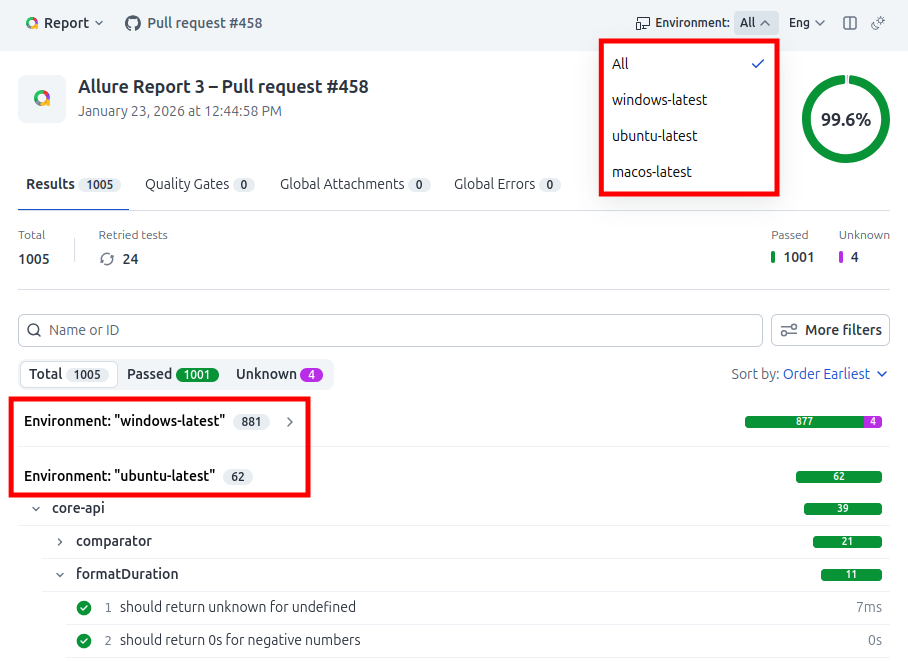
Allure Report 3 offers a new way to organize test results by environments, allowing you to group together tests by operating systems, browsers, deployments - or any other ways of categorization, and compare results from different environments easily.
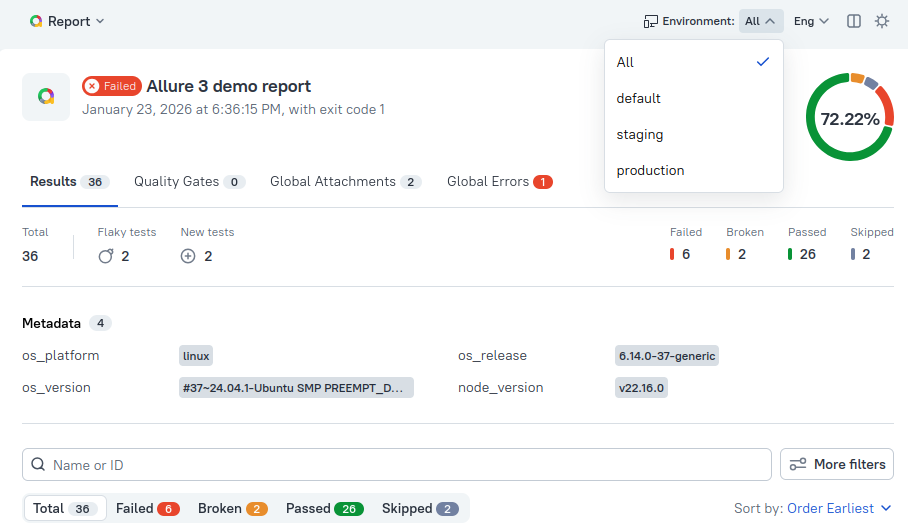
This feature is based on test result labels: you can map certain labels (or combinations of labels) to a specific environment name, and Allure Report 3 will split all test results on the report home page into separate hierarchies, which you can switch between via the Environments dropdown menu.
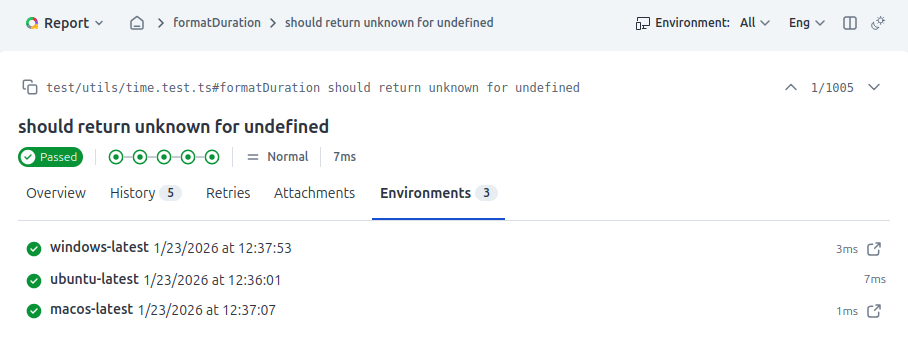
Additionally, on the Environments tab of every test result you will be able to see available results of the same test from other environments.
Prerequisites
- This feature requires you to use a dynamic configuration file (
.mjs,.cjs,.js) for Allure Report 3. - You should set the labels storing environment information in your tests code. Please refer to the documentation of the framework adapter you're using to find out how.
Basic configuration
Environments are governed by the environments configuration parameter.
You should specify environment names as the keys of the environments object and provide a matcher function for each.
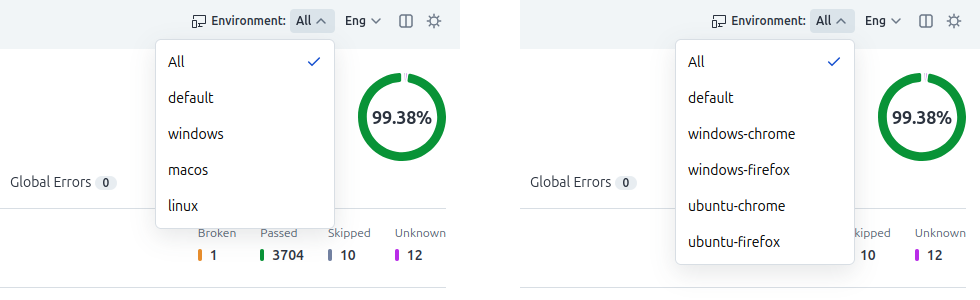
The examples below show how to assign environments based on a single label or multiple labels. Allure will look for labels named os and, in the two-label example, browser, and assign environments accordingly:
{
  environments: {
    windows: {
      matcher: ({ labels }) =>
        labels.find(({ name, value }) => name === "os" && value === "Windows"),
    },
    macos: {
      matcher: ({ labels }) =>
        labels.find(({ name, value }) => name === "os" && value === "macOS"),
    },
    linux: {
      matcher: ({ labels }) =>
        labels.find(({ name, value }) => name === "os" && value === "Linux"),
    }
  }
}{
environments: {
"windows-chrome": {
matcher: ({ labels }) =>
labels.some(l => l.name === "os" && l.value === "Windows") &&
labels.some(l => l.name === "browser" && l.value === "Chrome"),
},
"windows-firefox": {
matcher: ({ labels }) =>
labels.some(l => l.name === "os" && l.value === "Windows") &&
labels.some(l => l.name === "browser" && l.value === "Firefox"),
},
"ubuntu-chrome": {
matcher: ({ labels }) =>
labels.some(l => l.name === "os" && l.value === "Ubuntu") &&
labels.some(l => l.name === "browser" && l.value === "Chrome"),
},
"ubuntu-firefox": {
matcher: ({ labels }) =>
labels.some(l => l.name === "os" && l.value === "Ubuntu") &&
labels.some(l => l.name === "browser" && l.value === "Firefox"),
}
}
}The above configurations result in environment menus like these:
How matcher functions work
- Allure reads test result files and loads all
labelsfrom each test result. - The matcher function receives
{ labels: TestLabel[] }from the Allure Report process. Each label is{ name: string, value: string }. - If the test result belongs to the environment, the matcher function returns
true. - First match wins - tests results cannot be assigned to multiple environments, so the order of environments in the config file matters.
- If Allure can't match a test result to any environment, it assigns it to the
defaultenvironment, so no test results get lost.
Environment variables
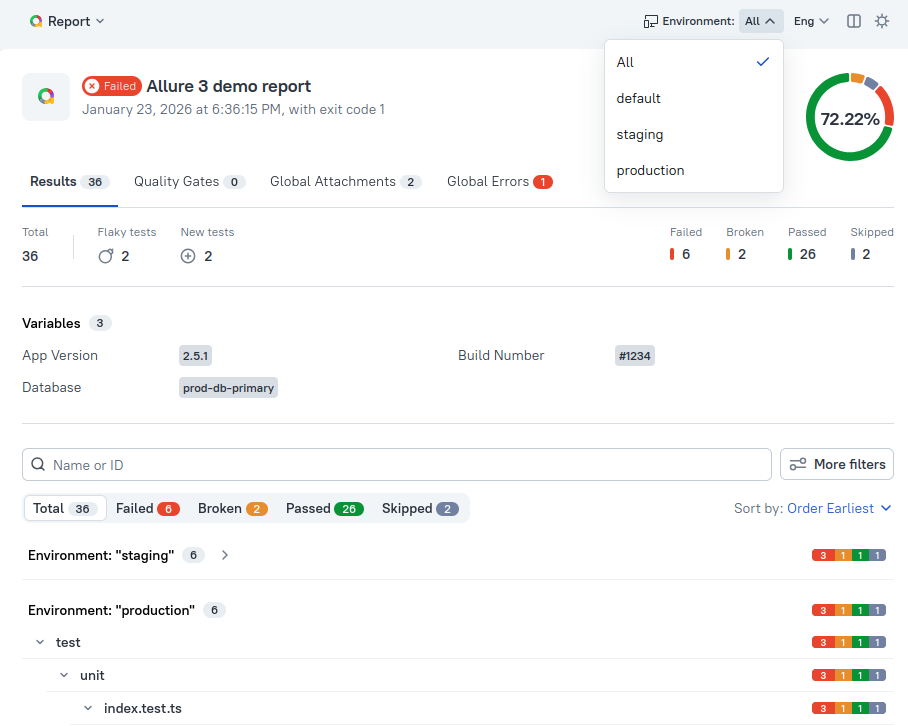
You can add any metadata that applies to the whole report via the global variables configuration parameter. Allure displays it at the top of the report homepage in the Variables section.
In addition to global variables, you can set environment-specific variables, which can override existing global variables, or be displayed in addition to them, when you select a specific environment:
// Global vs Environment-Specific Variables
{
  variables: {
    "App Version": "2.5.1",            // Shown everywhere
    "Build Number": "#1234",         // Shown everywhere
    "Database": "prod-db-primary"      // Shown, unless overridden
  },
  environments: {
    staging: {
        matcher: ({ labels }) =>
        labels.some(({ name, value }) => name === "env" && value === "staging"),
        variables: {
            "Server": "staging.example.com", // Shown for staging
            "Database": "staging-db",        // Overrides global variable for staging
        }
    },
    production: {
        matcher: ({ labels }) =>
        labels.some(({ name, value }) => name === "env" && value === "production"),
        variables: {
            "Server": "api.example.com",     // Shown for production
        }
    }
  }
}
CLI override and CI/CD workflows
Allure CLI allows you to override environment assignment for the entire test launch by using the allure run wrapper command:
allure run --environment="<environment_name>" -- <test_command>For example:
allure run --environment="staging" -- pnpm testIts main use is running tests in multiple environments in CI/CD workflows and creating combined reports with the help of the multistage builds feature:
- You run your tests in different environments and save each run as a stage archive.
- Then you collect all stage archives and build a single multistage report from them.
- Allure maps test results from all runs to their assigned to environments and you get a well-structured unified report, where you can easily see and compare how your tests perform in different contexts.
Below is a snippet from the Allure Report 3 Demo workflow on GitHub, illustrating this idea.
jobs:
  test:
    name: Build
    strategy:
      matrix:
        os: [ubuntu-latest, macos-latest]
    runs-on: ${{ matrix.os }}

    steps:
      # ...
      # Test environment set up steps
      # ...

      - name: Test Project
        # One full test run per os saved as a stage archive
        run: pnpm allure run --config=./allurerc.mjs --environment="${{ matrix.os }}" --stage="allure-results-${{ matrix.os }}" -- pnpm test

      - name: Upload test results
        if: always()
        uses: actions/upload-artifact@v5
        with:
          name: allure-results-${{ matrix.os }}
          path: ./allure-results-${{ matrix.os }}.zip
          compression-level: 0

  report:
    runs-on: ubuntu-latest
    needs: test
    steps:
      # ...
      # Report generator set up steps
      # ...

      # Fetching the stage archive for the Ubuntu test run
      - name: Download allure results from Ubuntu
        uses: actions/download-artifact@v6
        with:
          name: allure-results-ubuntu-latest
          path: ./

      # Fetching the stage archive for the macOS test run
      - name: Download allure results from macOS
        uses: actions/download-artifact@v6
        with:
          name: allure-results-macos-latest
          path: ./

      - name: Build report
        # Building the multistage report from all fetched stage archives
        run: pnpm allure generate --stage="allure-results-*.zip" --output=./allure-report

        # ...
        # Report deployment steps
        # ...
TIP
While the --environment option overrides the label mapping rules in the config file, it will still pick up any variables specified for the environment matching the one you pass. This means you can define environment variables in the config even when using --environment to assign environments.
{
  environments: {
    staging: {
        // matcher redundant when using --environment flag
        variables: {
            "Server": "staging.example.com",
            "Database": "staging-db"
        }
    },
    production: {
        variables: {
            "Server": "api.example.com",
            "Database": "prod-db-primary"
        }
    }
  }
}
The old environments feature
Allure 3 still supports adding environment metadata to a report using the legacy Allure 2 method: if an environment.properties file is discovered in the results directory, Allure displays the data from it at the top of the report page in the Metadata section.
This can either complement or conflict with your environments configuration, so make sure to get rid of this file, or to harmonize it with your new environments set up - whichever suits you best.