
Performance Metrics Allure 3
Besides test results, Allure Report 3 can collect numeric performance metrics from your test run: page load times, API response times, throughput, memory usage, bundle sizes, or any other measurement. The report shows them in a dedicated Metrics section and compares them with previous runs, and quality gates can fail the run when a metric gets worse. See View metrics in the report for where to find the Metrics section and what it shows.
TIP
This feature is not related to Export metrics, which describes how to export Allure Report 2 test statistics to InfluxDB or Prometheus.
Write metrics to the results directory
Allure reads metrics from files in the test results directory, next to the test result files:
- any file whose name ends with
-perf.json, for example,a1b2c3d4-perf.json; - a file named
performance.json.
Each file contains a JSON array of measurements:
[
  {
    "id": "home-page",
    "key": "page.load",
    "value": 1240,
    "start": 1792065109697,
    "stop": 1792065110937
  },
  {
    "id": "search-page",
    "key": "page.load",
    "value": 1515,
    "start": 1792065110937,
    "stop": 1792065112452
  }
]| Field | Type | Description |
|---|---|---|
id | string | Identifier of the measured object, for example, the page or the endpoint. Keep it the same across runs. |
key | string | Name of the metric. Measurements with the same key are aggregated in the report, and the key is used in the configuration and in quality gate rules. |
value | number | The measured value. |
start | number | Start time of the measurement, as a Unix timestamp in milliseconds. |
stop | number | End time of the measurement, as a Unix timestamp in milliseconds. |
All fields are required. Allure ignores measurements with missing fields or a non-numeric value.
Allure integrations don't write metric files, so you need to produce them yourself: from your tests, from a separate script, or by converting the output of a performance testing tool. For example, this Node.js script measures how long two pages take to load and saves the results as a metric file:
import { randomUUID } from "node:crypto";
import { mkdirSync, writeFileSync } from "node:fs";

const resultsDir = "allure-results";
const metrics = [];

const measure = async (id, key, action) => {
  const start = Date.now();
  await action();
  const stop = Date.now();
  metrics.push({ id, key, value: stop - start, start, stop });
};

await measure("home-page", "page.load", () => fetch("https://example.com/"));
await measure("search-page", "page.load", () => fetch("https://example.com/?q=allure"));

mkdirSync(resultsDir, { recursive: true });
writeFileSync(`${resultsDir}/${randomUUID()}-perf.json`, JSON.stringify(metrics));
Configure metrics
Metrics are shown in the report even without any configuration: under their keys, in the Unconfigured group. To give them readable titles and units, and to group related metrics together, add the performance section to the configuration file:
import { defineConfig } from "allure";

export default defineConfig({
  performance: {
    groups: {
      web: { title: "Web pages" },
      api: { title: "API" },
    },
    metrics: {
      "page.load": { title: "Page load", unit: "ms", better: "lower", group: "web" },
      "api.rps": { title: "API throughput", unit: "req/s", better: "higher", group: "api" },
    },
  },
});{
"performance": {
"groups": {
"web": { "title": "Web pages" },
"api": { "title": "API" }
},
"metrics": {
"page.load": { "title": "Page load", "unit": "ms", "better": "lower", "group": "web" },
"api.rps": { "title": "API throughput", "unit": "req/s", "better": "higher", "group": "api" }
}
}
}performance:
groups:
web:
title: Web pages
api:
title: API
metrics:
page.load:
title: Page load
unit: ms
better: lower
group: web
api.rps:
title: API throughput
unit: req/s
better: higher
group: apigroups- the groups to show the metrics in. Each key is a group ID, andtitleis the group name shown in the report.metrics- settings for each metric key:title- the name of the metric shown in the report.unit- the unit added to the values, for example,msorreq/s.better-lowerif smaller values are better (durations, sizes), orhigherif larger values are better (throughput, scores). The report uses it to highlight changes for the worse, and quality gate delta rules use it to ignore changes for the better.group- the ID of a group fromgroups.
View metrics in the report
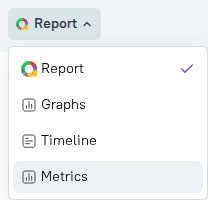
When the report contains metrics, the Report menu in the top left corner gets the Metrics item:
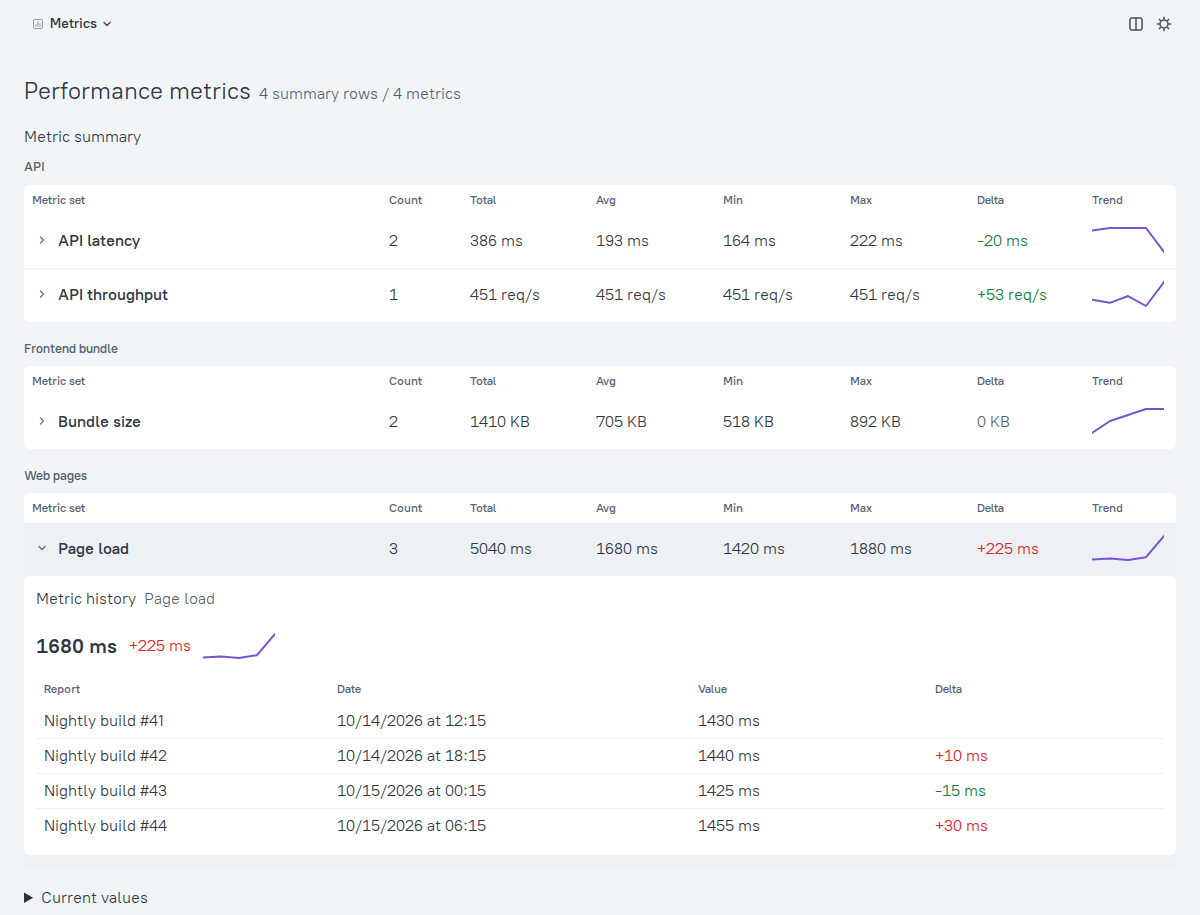
It opens a table for each group, with a row for each metric:
- Count - the number of measurements with this key in the current run.
- Total, Avg, Min, Max - the sum, average, minimum and maximum of the values.
- Delta - how much the average value has changed since the previous report. According to the
bettersetting, a change for the worse is highlighted in red, and a change for the better in green. - Trend - a sparkline of the average values in the previous reports and the current one.
Click a row to see the Metric history: the value and the change for each previous report. The Current values list at the bottom shows every individual measurement of the current run, with the file it was read from.
Track metrics over time
To compare metrics with previous runs, Allure needs the test history: either a history file enabled with the historyPath option, or Allure Report Storage. For each report, Allure saves the average value of each metric key to the history. The Delta and Trend columns, the metric history and the delta quality gate rules are based on these saved values.
With Allure Report Storage, history is kept per branch, and a branch that doesn't have enough reports of its own gets the main branch's reports added to its history (see History depth and branches). As a result, the first reports of a new branch compare their metrics with the latest report of the main branch. In a pull request or merge request pipeline, Allure uses the history of the target branch instead, on every run (see History depth and branches), so the delta rules check whether the change made the metrics worse than on the target branch.
Check metrics with quality gates
Allure Report has four quality gate rules for metrics. They can fail a test run if a metric exceeds a limit or changes too much since the previous run:
import { defineConfig } from "allure";

export default defineConfig({
  historyPath: "./history.jsonl",
  qualityGate: {
    rules: [
      {
        metricMax: { key: "page.load", value: 1500 },
        metricMaxDeltaPercent: { key: "api.rps", value: 10 },
      },
    ],
  },
});
See Metric rules for details.
Metrics in multistage builds
Dump archives store the metrics collected during each stage, and the report built from the archives shows the metrics from all stages.