
Slack integration Allure 3
Allure Report 3 can post a summary of each run to a Slack channel. The slack plugin that does this is included in the allure package.
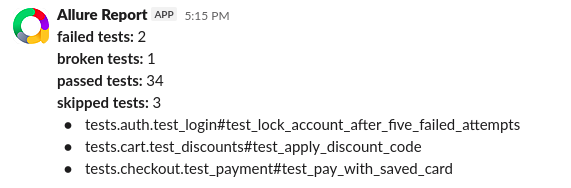
The message contains the number of tests with each status and the list of failed and broken tests, by their full names. Statuses without tests are not listed.
There are two ways to post the message:
- with an incoming webhook - the simplest setup, the message always goes to the channel selected for the webhook;
- with a bot token - the message goes to the channel set in the Allure configuration, and the Slack app must be a member of the channel.
Post with an incoming webhook
In Slack API: Applications, create a new app for your workspace.
In the settings of the app, open Incoming Webhooks, turn on Activate Incoming Webhooks, and click Add New Webhook. Select the channel for the messages and copy the webhook URL.
Pass the URL to Allure in the
ALLURE_SLACK_WEBHOOKenvironment variable, for example, as a secret of your CI pipeline.Anyone who knows the URL can post to the channel, so don't keep it in the configuration file or anywhere else under version control.
Add the
slackplugin to thepluginssection of the configuration file, next to the plugin of your report:javascriptimport { defineConfig } from "allure"; export default defineConfig({ plugins: { awesome: {}, slack: {}, }, });json{ "plugins": { "awesome": {}, "slack": {} } }yamlplugins: awesome: {} slack: {}
After generating the report, Allure posts the message to the channel.
Post with a bot token
In Slack API: Applications, create a new app for your workspace.
In the settings of the app, open OAuth & Permissions and add the
chat:writescope to Bot Token Scopes. Then install the app to your workspace and copy the Bot User OAuth Token.In Slack, add the app to the channel for the messages, for example, by typing
/invite @app-namein the channel.Pass the token and the channel to Allure in the
ALLURE_SLACK_TOKENandALLURE_SLACK_CHANNELenvironment variables. The channel can be set by its ID, such asC0123456789, or by its name, such astest-resultsor#test-results.Add the
slackplugin to the configuration file, the same way as for the incoming webhook.
If both a webhook URL and a token are provided, Allure uses the webhook.
Options
All options can also be provided via environment variables. If an option is set in the configuration file, the environment variable is not used.
| Option | Environment variable | Description |
|---|---|---|
webhook | ALLURE_SLACK_WEBHOOK | Incoming webhook URL. If set, token and channel are not used. |
token | ALLURE_SLACK_TOKEN | Bot token of the Slack app. |
channel | ALLURE_SLACK_CHANNEL | ID or name of the channel to post to with the bot token. |
For example, to set the channel in the configuration file and keep only the token in the environment:
import { defineConfig } from "allure";

export default defineConfig({
  plugins: {
    awesome: {},
    slack: {
      options: {
        channel: "test-results",
      },
    },
  },
});{
"plugins": {
"awesome": {},
"slack": {
"options": {
"channel": "test-results"
}
}
}
}plugins:
awesome: {}
slack:
options:
channel: test-resultsTroubleshooting
If Allure can't post the message, it prints the error to the console and generates the report anyway. The error contains the error code that Slack returned, for example:
plugin slack error Error: slack error: not_in_channelnot_in_channel- the app is not a member of the channel. Add the app to the channel.channel_not_found- there is no channel with this ID or name, or the app can't see it.invalid_auth- the token is not valid.invalid_arguments- the channel is not set.